
Learning Outcomes
By the end of this sub-strand, the learner should be able to:
a) Identify types of visual programming applications used to solve problems in day-to-day life
b) Explore the features of visual programming applications used in the work environment
c) Create instructions to solve problems using visual programming application
d) Value the importance of visual programming to solve problems in day-to-day life
a) Identify Types of Visual Programming Applications
Visual programming (also called block-based programming) is a method of creating computer programs by manipulating graphical elements (blocks) rather than writing text-based code. Users drag and drop blocks that represent programming commands and snap them together like puzzle pieces.
Definition:
- Visual Programming: Developing applications using graphical components and figures instead of text-based code.
- Visual Programming Application: Software that provides a visual interface for creating programs using blocks, images, and drag-and-drop functionality.
Types of Visual Programming Applications:
|
Type |
Description |
Examples |
|---|---|---|
|
Educational |
Designed to teach programming concepts and computational thinking to beginners, especially children and students. |
Scratch, Code.org, Microsoft MakeCode, Tynker, Blockly |
|
Multimedia |
Focused on creating interactive stories, animations, games, and artistic projects. |
Scratch, Alice, Kodu Game Lab |
|
Video Game Development |
Platforms that allow users to create their own games using visual scripting tools. |
Roblox Studio, Minecraft Education Edition, Construct 3, GDevelop |
|
Mobile App Development |
Tools that enable creation of mobile applications using visual interfaces and block-based logic. |
MIT App Inventor, Thunkable |
|
Robotics and Hardware |
Programming environments for controlling physical robots and microcontrollers. |
LEGO Mindstorms EV3 Software, MakeCode for micro:bit, mBlock |
|
Professional/Enterprise |
Visual tools integrated into professional development environments for specific tasks. |
Microsoft Visual Studio (with visual designers), LabVIEW, Unreal Engine Blueprints |
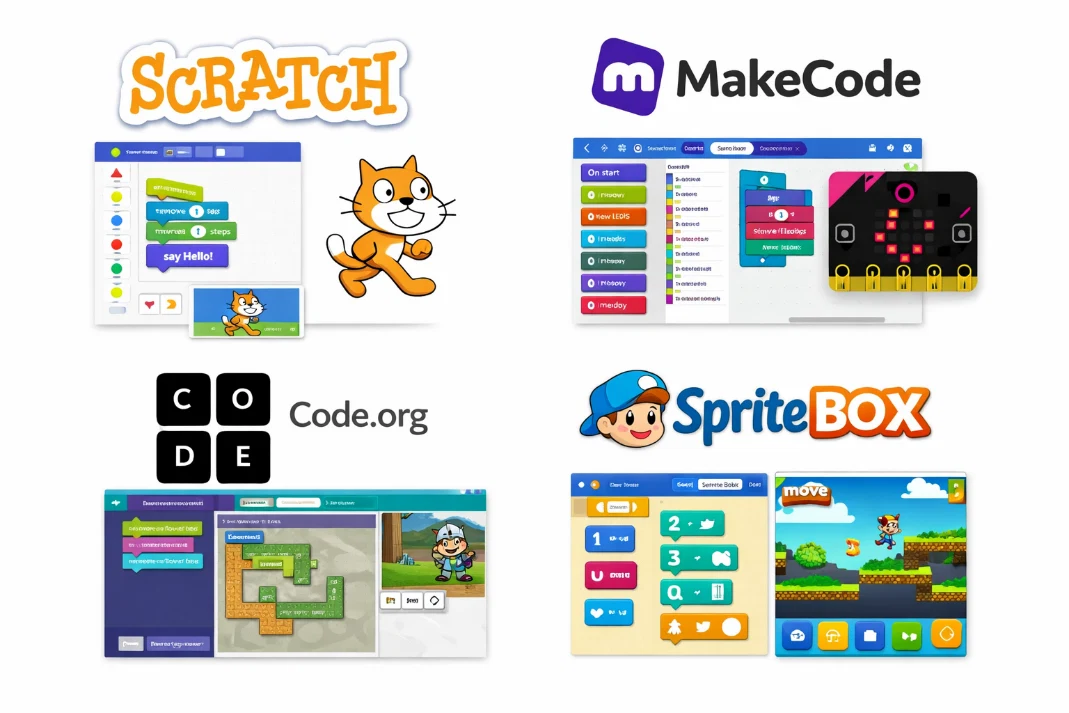
Common Visual Programming Applications Used in Schools:
|
Application |
Description |
Key Features |
|---|---|---|
|
Scratch |
Free, web-based platform developed by MIT. Uses colorful blocks to create interactive stories, games, and animations. |
• Block palette with categories (Motion, Looks, Sound, Events, Control, Sensing, Operators, Variables) |
|
Microsoft MakeCode |
Free, open-source platform for creating programs for microcontrollers (micro:bit) and retro-style games. |
• Simulator for testing without hardware |
|
Code.org |
Non-profit platform with structured courses teaching coding fundamentals through puzzles and games. |
• Themed tutorials (Minecraft, Star Wars, Frozen) |
|
SpriteBox |
Adventure game that teaches coding concepts by solving puzzles using command blocks. |
• Gamified learning experience |
b) Explore the Features of Visual Programming Applications
Using Scratch as the primary example, we will explore the common features found in visual programming environments.
Launching Scratch:
- Type "Scratch" in the search box of your web browser.
- Click on the Scratch website (scratch.mit.edu).
- Click "Create" to open the Scratch editor.
- Alternatively, the Scratch desktop app can be installed and launched from the Start menu.
Main Features of the Scratch Interface:
|
Feature |
Location |
Function |
|---|---|---|
|
Menu Bar |
Top of window |
Contains File menu (New, Save, Load projects) and Edit menu. Also includes language selector and tutorial access. |
|
Stage |
Top-right area |
The main working area where sprites perform actions. This is the output screen where users see their program running. Default size is 480 × 360 pixels. |
|
Backdrops Pane |
Below Stage |
Used to select, create, or upload background images for the stage. |
|
Sprite Pane |
Below Stage |
Displays thumbnails of all sprites in the current project. The selected sprite has a blue border. |
|
Sprite Info |
Within Sprite Pane |
Shows the name, position (x, y coordinates), size, and visibility status of each sprite. |
|
Block Palette |
Left column |
Contains color-coded categories of code blocks. Click a category to see available blocks. |
|
Code Area / Script Area |
Center area |
The workspace where code blocks are dragged, dropped, and snapped together to create scripts (programs). |
|
Tabs (Code, Costumes, Sounds) |
Top of Code Area |
Switch between coding, editing sprite appearance, and adding/managing sounds. |
Scratch Block Categories:
|
Category |
Color |
Purpose |
Example Blocks |
|---|---|---|---|
|
Motion |
Blue |
Controls sprite movement and position. |
move 10 steps, turn 15 degrees, go to x:0 y:0 |
|
Looks |
Purple |
Controls sprite appearance, size, and speech bubbles. |
say Hello! for 2 seconds, change size by 10, switch costume to |
|
Sound |
Pink/Magenta |
Controls audio playback and volume. |
play sound Meow until done, start sound, set volume to 100% |
|
Events |
Yellow |
Triggers scripts to start. |
when green flag clicked, when key pressed, when this sprite clicked |
|
Control |
Orange |
Manages program flow with loops and conditions. |
wait 1 seconds, repeat 10, if then, forever |
|
Sensing |
Light Blue |
Detects interactions and conditions. |
touching mouse-pointer?, ask What's your name? and wait, answer |
|
Operators |
Green |
Performs mathematical and logical operations. |
+, -, *, /, pick random 1 to 10, and, or |
|
Variables |
Dark Orange |
Creates and manages variables for storing data. |
set my variable to 0, change my variable by 1 |
|
My Blocks |
Pink |
Creates custom blocks (procedures/functions). |
Define custom block |
Terminologies Used in Visual Programming:
|
Term |
Definition |
Scratch Example |
|---|---|---|
|
Syntax |
The rules that govern how code must be written. In block-based programming, syntax is enforced by block shapes that only fit together in valid ways. |
A repeat block has a notch that only accepts other blocks inside it. |
|
Variable |
A named storage location that holds a value which can change during program execution. |
Creating a score variable to keep track of game points. |
|
Input Statement |
Blocks or commands that allow the user to enter data into the program. |
ask What's your name? and wait block. |
|
Output Statement |
The result or action produced by the program, visible to the user. |
Sprite moving on stage, playing a sound, displaying text. |
|
Coding Blocks |
Graphical representations of programming commands that can be dragged and snapped together. |
The blocks in the Block Palette. |
|
Sequence Statement |
Instructions that execute one after another in order. |
A stack of blocks that run from top to bottom. |
|
Repeating Statement (Loop) |
A structure that repeats a set of instructions multiple times. |
repeat 10 block, forever block. |
|
Selection Statement (Conditional) |
A structure that makes decisions based on conditions. |
if...then block, if...then...else block. |
|
Control Structures |
Blocks that control the flow of program execution (loops, conditionals). |
repeat, forever, if, wait blocks. |
|
Reserved Words / Keywords |
Words that have special meaning in the programming language and cannot be used as variable names. |
when, by, change, set (these are fixed on blocks). |
|
Sprite |
A small graphic character that can be programmed to perform actions. |
The cat sprite (default), or any added character. |
|
Backdrop |
The background image of the stage. |
Choosing "Forest" or "Space" background from the library. |
|
Costume |
A specific appearance or frame of a sprite. Sprites can have multiple costumes. |
A bird sprite with costumes showing wings up and wings down for animation. |
|
Green Flag |
The start button that runs the program. |
Clicking the green flag executes all scripts starting with when green flag clicked. |
|
Stop Sign |
The button that halts all running scripts. |
Clicking the red stop sign ends program execution. |
Effects in Visual Programming:
|
Effect Type |
Description |
Example Blocks |
|---|---|---|
|
Sound Effects |
Adding audio to enhance projects. |
play sound, start sound, change pitch effect |
|
Animations |
Creating movement and visual changes. |
Switching costumes rapidly, using glide blocks, change size |
|
Background Effects |
Changing the stage appearance. |
Switching backdrops, using graphic effects like change color effect |
c) Create Instructions to Solve Problems Using Visual Programming Application
Creating a program in Scratch involves breaking down a problem into steps and then assembling the appropriate blocks.
Basic Steps to Create a Scratch Program:
- Plan: Define what you want the program to do (e.g., "Make the cat walk across the stage and meow").
- Select Sprites and Backdrop: Choose or create characters and background.
- Drag Blocks: Drag blocks from the palette to the Code Area.
- Snap Blocks Together: Connect blocks to form a script.
- Test: Click the green flag to run the program and observe the output.
- Debug: If something doesn't work as expected, check the order of blocks and values used.
- Refine: Add more features, sounds, or animations.
Example Problem 1: Moving a Sprite
Goal: Make the cat sprite move 100 steps when the green flag is clicked.
Solution:
text
when [green flag] clicked
move (100) steps
Example Problem 2: Sprite Says Something
Goal: Make the cat say "Hello, welcome to Scratch!" for 3 seconds when clicked.
Solution:
text
when this sprite clicked
say [Hello, welcome to Scratch!] for (3) seconds
Example Problem 3: Repeating Action
Goal: Make the cat walk back and forth continuously.
Solution:
text
when [green flag] clicked
forever
move (50) steps
wait (0.5) seconds
turn (180) degrees
Example Problem 4: Using Variables for Scoring
Goal: Create a simple clicker game where the score increases each time the sprite is clicked.
Solution:
- Create a variable named Score.
- Use these blocks:
text
when [green flag] clicked
set [Score] to (0)
when this sprite clicked
change [Score] by (1)
play sound [pop] until done
Example Problem 5: Using Conditionals
Goal: Make the sprite ask a math question and respond whether the answer is correct.
Solution:
text
when [green flag] clicked
ask [What is 5 + 7?] and wait
if (answer) = (12) then
say [Correct! Great job!] for (2) seconds
else
say [Sorry, that's not correct. Try again!] for (2) seconds
Example Problem 6: Using Sensing for Interaction
Goal: Make the sprite bounce off the edges of the stage.
Solution:
text
when [green flag] clicked
forever
move (10) steps
if on edge, bounce
Example Problem 7: Creating a Simple Animation
Goal: Animate a bird flying by switching costumes.
Solution:
- Add a bird sprite with at least two costumes (wings up, wings down).
- Use these blocks:
text
when [green flag] clicked
forever
switch costume to [bird-a]
wait (0.2) seconds
switch costume to [bird-b]
wait (0.2) seconds
Key Inquiry Question: How can we create programs to solve problems using visual programming?
d) Value the Importance of Visual Programming to Solve Problems in Day-to-Day Life
Visual programming develops valuable skills that extend beyond the computer screen.
|
Importance |
Explanation |
|---|---|
|
Develops Computational Thinking |
Breaking down problems, recognizing patterns, creating step-by-step solutions (algorithms). These skills apply to many areas of life. |
|
Enhances Problem-Solving Skills |
Debugging code teaches persistence and analytical thinking. Learners learn to identify issues and test solutions systematically. |
|
Fosters Creativity and Expression |
Visual programming allows users to create interactive stories, animations, and games, providing an outlet for creative expression. |
|
Builds Digital Literacy |
Understanding how software works empowers users to be creators, not just consumers, of technology. |
|
Makes Coding Accessible |
Block-based programming removes the barrier of complex syntax, making coding approachable for beginners of all ages. |
|
Encourages Collaboration and Sharing |
Platforms like Scratch have online communities where users share projects, remix others' work, and learn collaboratively. |
|
Supports Learning in Other Subjects |
Programming projects can reinforce concepts in math (coordinates, angles, variables), science (simulations), and language arts (storytelling). |
|
Prepares for Future Careers |
Foundational programming concepts learned visually transfer to text-based languages (Python, JavaScript) used in professional software development. |
|
Teaches Persistence |
When a program doesn't work, learners must keep trying and refining until they succeed, building resilience. |
Real-World Applications Inspired by Visual Programming Concepts:
|
Concept |
Real-World Application |
|---|---|
|
Sequences |
Following a recipe, assembly instructions, morning routine. |
|
Loops (Repetition) |
Manufacturing processes, traffic light cycles, daily work schedules. |
|
Conditionals (If-Then) |
Decision-making: "If it's raining, take an umbrella; else, wear sunglasses." |
|
Variables |
Keeping score in a game, tracking inventory in a store, saving your high score. |
|
Events |
Responding to stimuli: "When the doorbell rings, go to the door." |
|
Sensing |
Automatic doors that sense motion, thermostats that sense temperature. |
Key Inquiry Question: Why is learning visual programming valuable?